The Wastage report enables you to analyse your wastage for a given period. You can use the Wastage Report to view:
- Your total wastage over time for the period
- Total wastage by product for the period
- Wastage over time for specific products, root categories, reporting categories, or wastage reasons
Wastage includes any items recorded as wastage from the kitchen and drink order screens, and any items that have been voided as stock used.
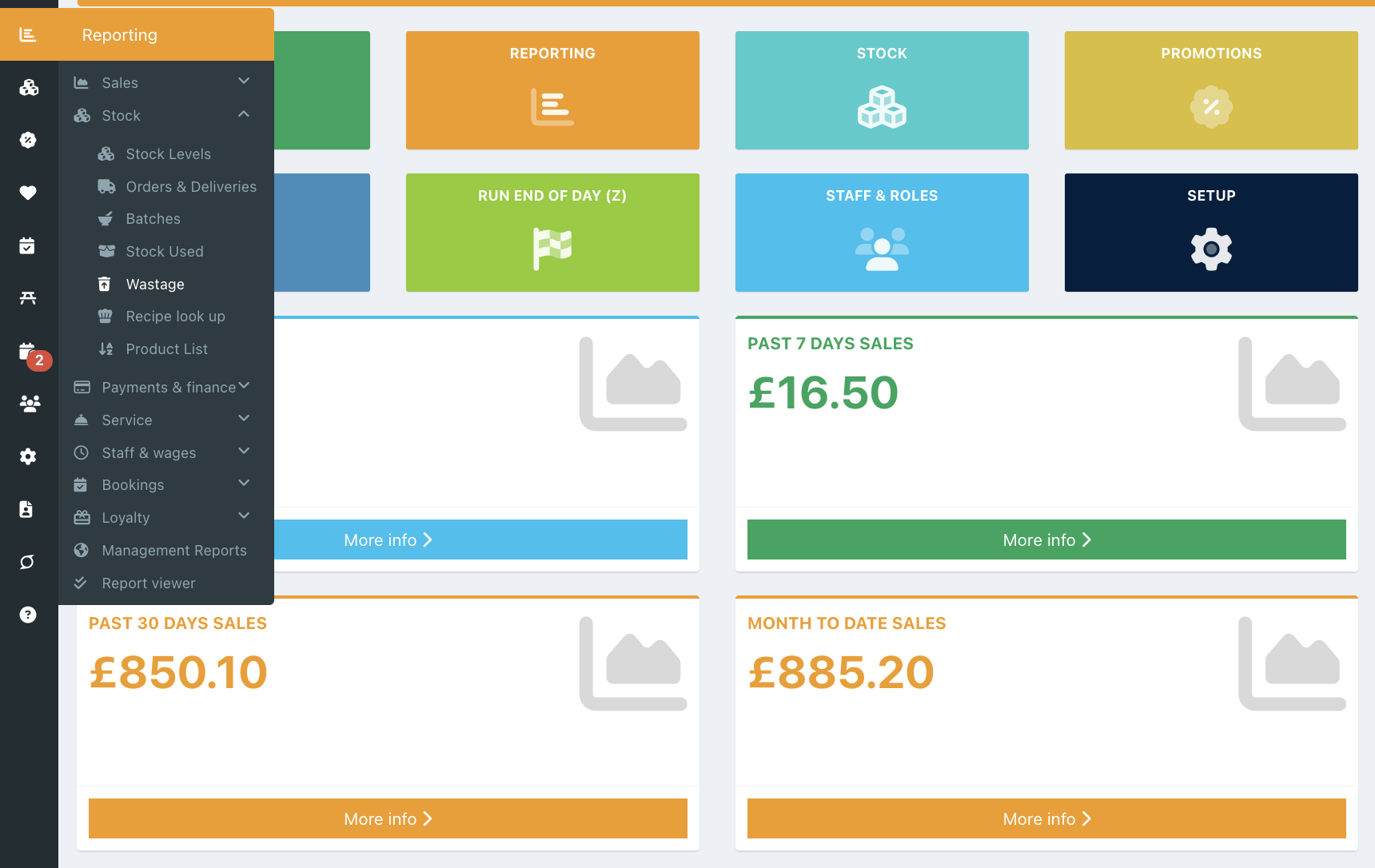
To view the Wastage report, go into your back office and select Reporting > Stock > Wastage.
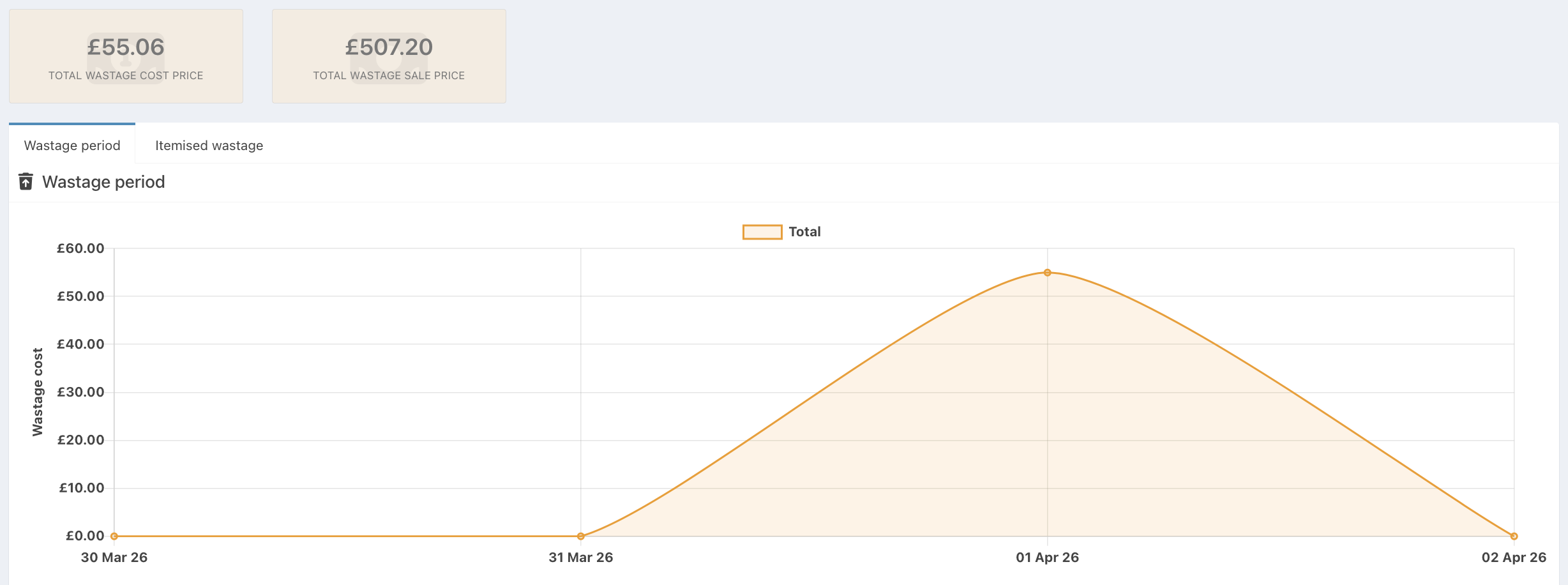
Set the required date range in the Date range field. You will be presented with a graph of total wastage over the period.
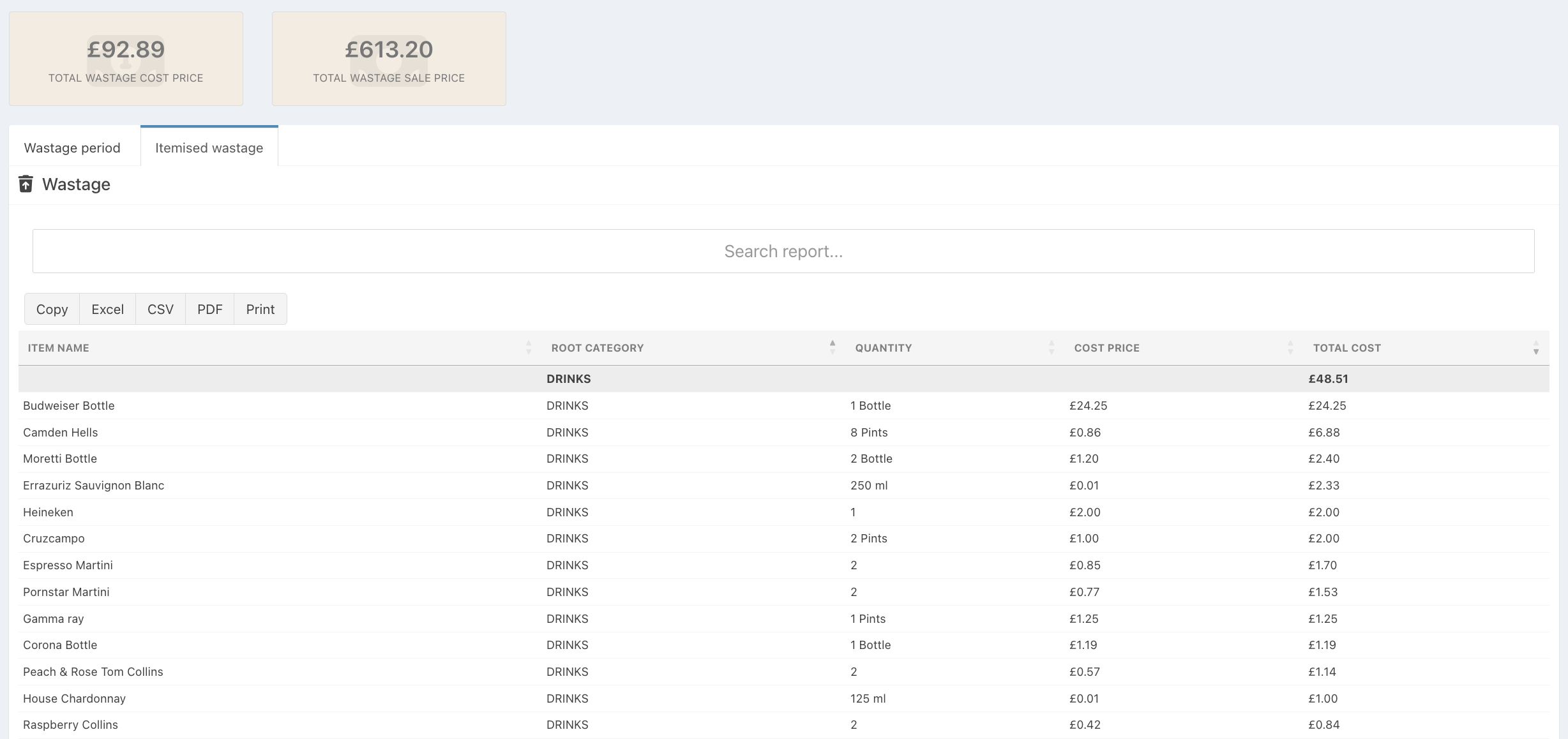
On the Itemised Wastage tab, you can view the total wastage by product for the period, ordered by the products with the highest wastage cost.
You can then see how wastage has changed over time for specific products by typing them into the Select product(s) field.
Note: You can select up to 25 products.

Filters and grouping
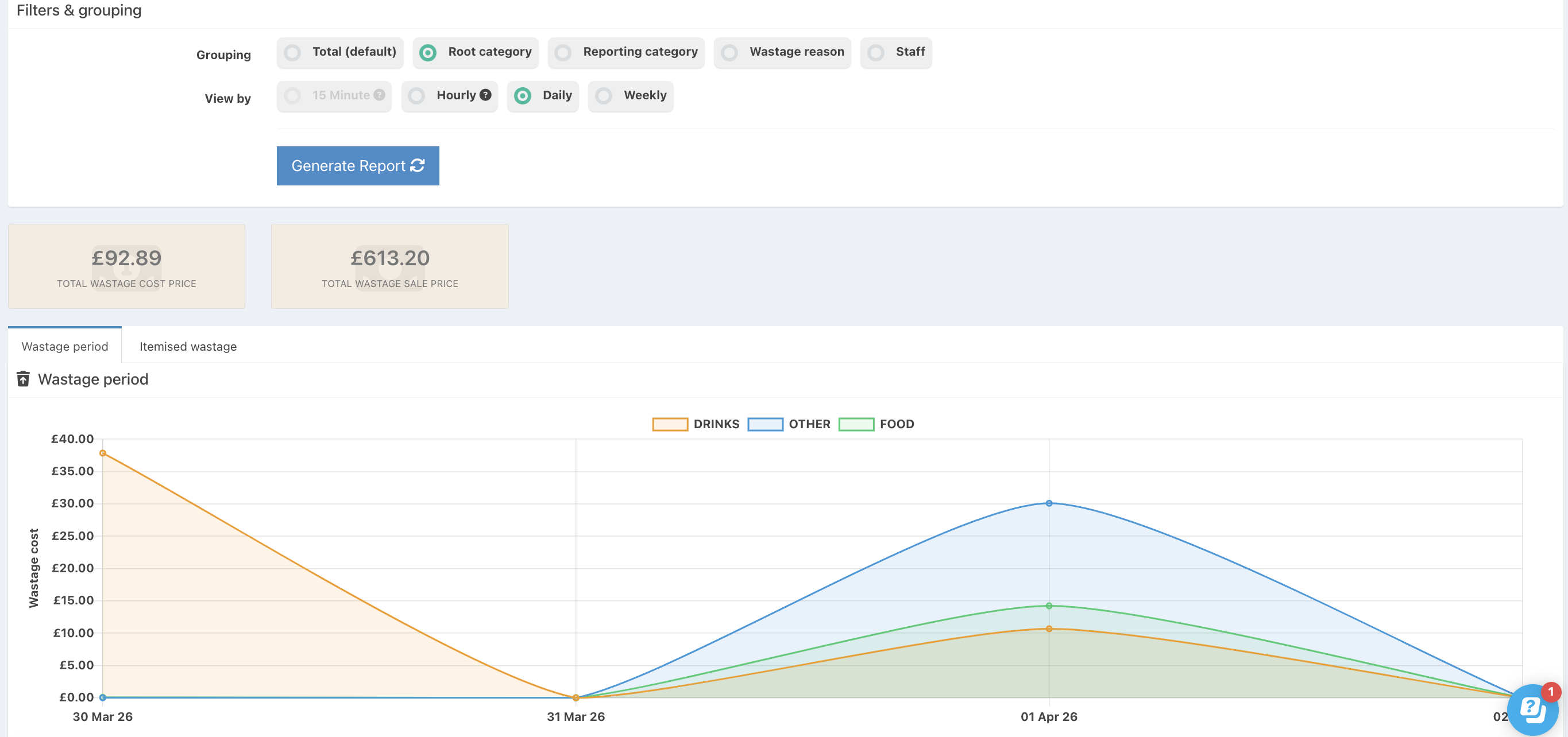
From the Filters and grouping section, you can choose other grouping and display options.
- Grouping:
- Total (default) - The overall total cost of wastage for the selected date range
- Root category - View wastage displayed by the Wet, Dry and Other categories
- Reporting category - View wastage displayed by reporting categories
- Wastage reason - View wastage displayed by wastage reason
- Staff - View wastage by staff member
- View by:
- 15 minutes - Wastage displayed per 15 minutes. Only available for a date range shorter than one day
- Hourly - Wastage displayed per hour. Only available for date ranges shorter than 14 days.
- Daily - Wastage displayed daily
- Weekly - Wastage displayed weekly
Click the blue Generate report button to update your report after making any changes
Totals
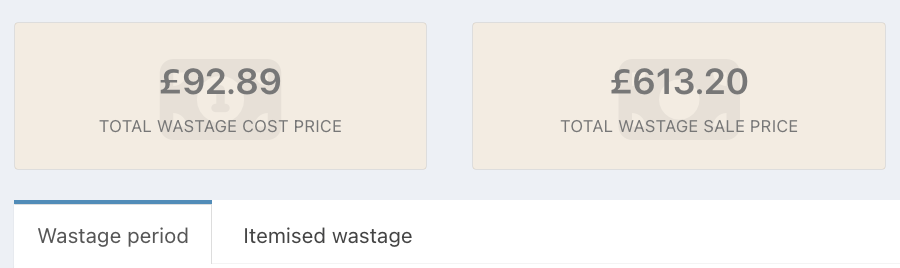
The totals boxes at the top of the report will show you the totals for the date range and grouping option selected:
- Total wastage at cost price
- Total wastage at sale price
Searching
If you need to search for a particular product on the Itemised wastage view, start typing the name of the product into the Search bar above the list view.

Sorting
To sort the order of the Wastage report, click on any of the column headers with the exception of Quantity. This will alternate between ascending and descending order.
When selected the arrow will highlight in grey.

Exporting
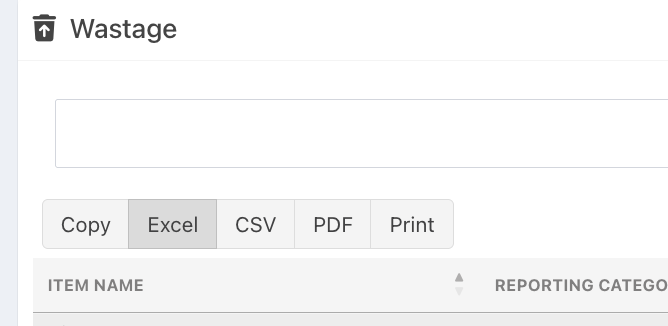
The wastage report can also be copied to your clipboard, exported to Excel or CSV, downloaded as a PDF or printed.
Was this article helpful?
That’s Great!
Thank you for your feedback
Sorry! We couldn't be helpful
Thank you for your feedback
Feedback sent
We appreciate your effort and will try to fix the article