When you have added a booking form to your website, you can set your availability and auto-allocation rules.
To set your Booking availability, click the Availability tab at the top of the Booking widget setup.
If you haven't already set your service times, you can create them by clicking the blue Add new times button.
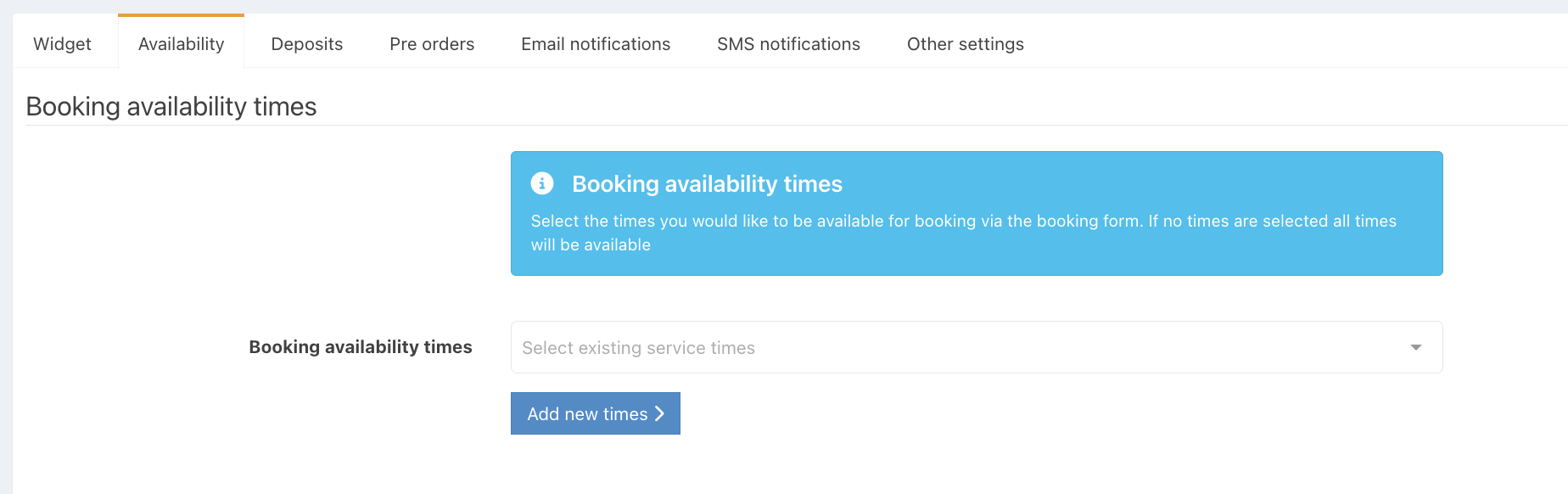
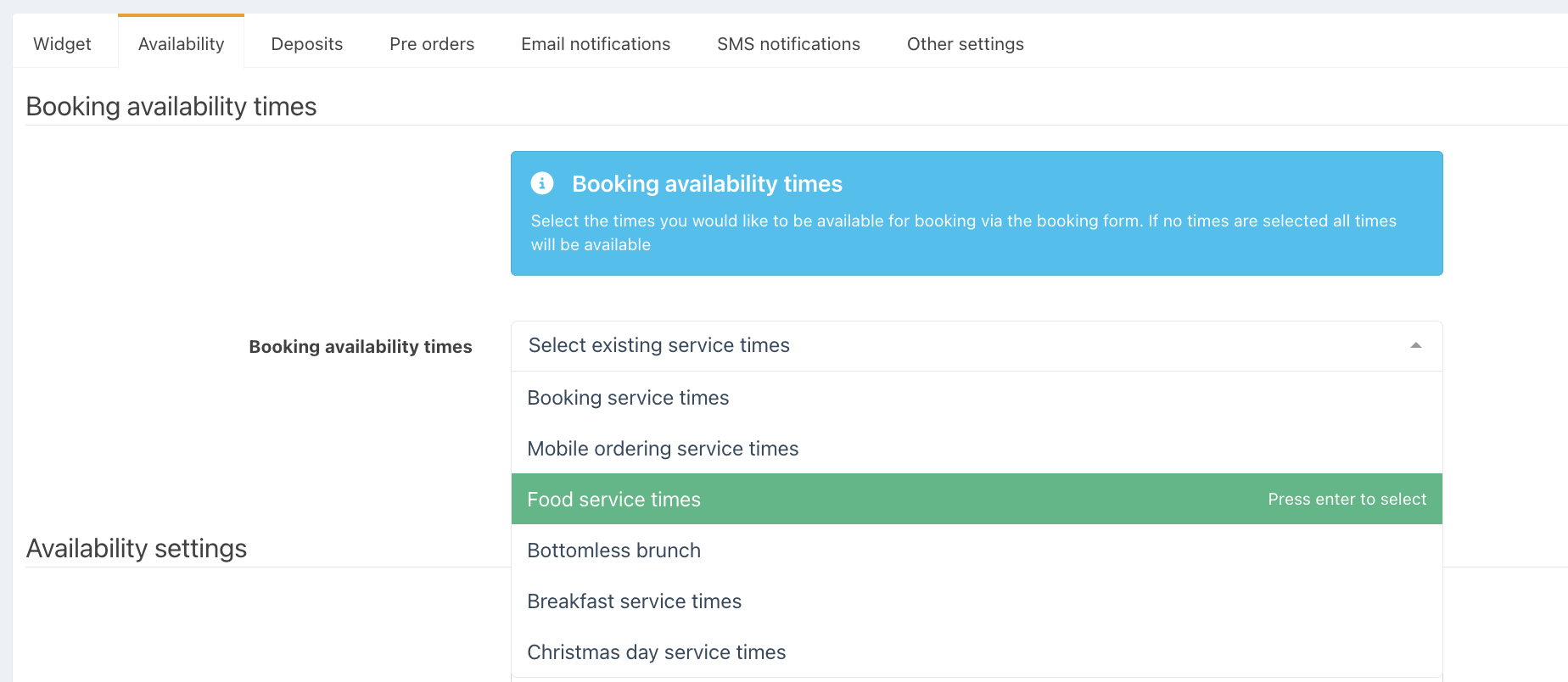
Click in the Booking availability times dropdown box & select the service time you would like to use for bookings.
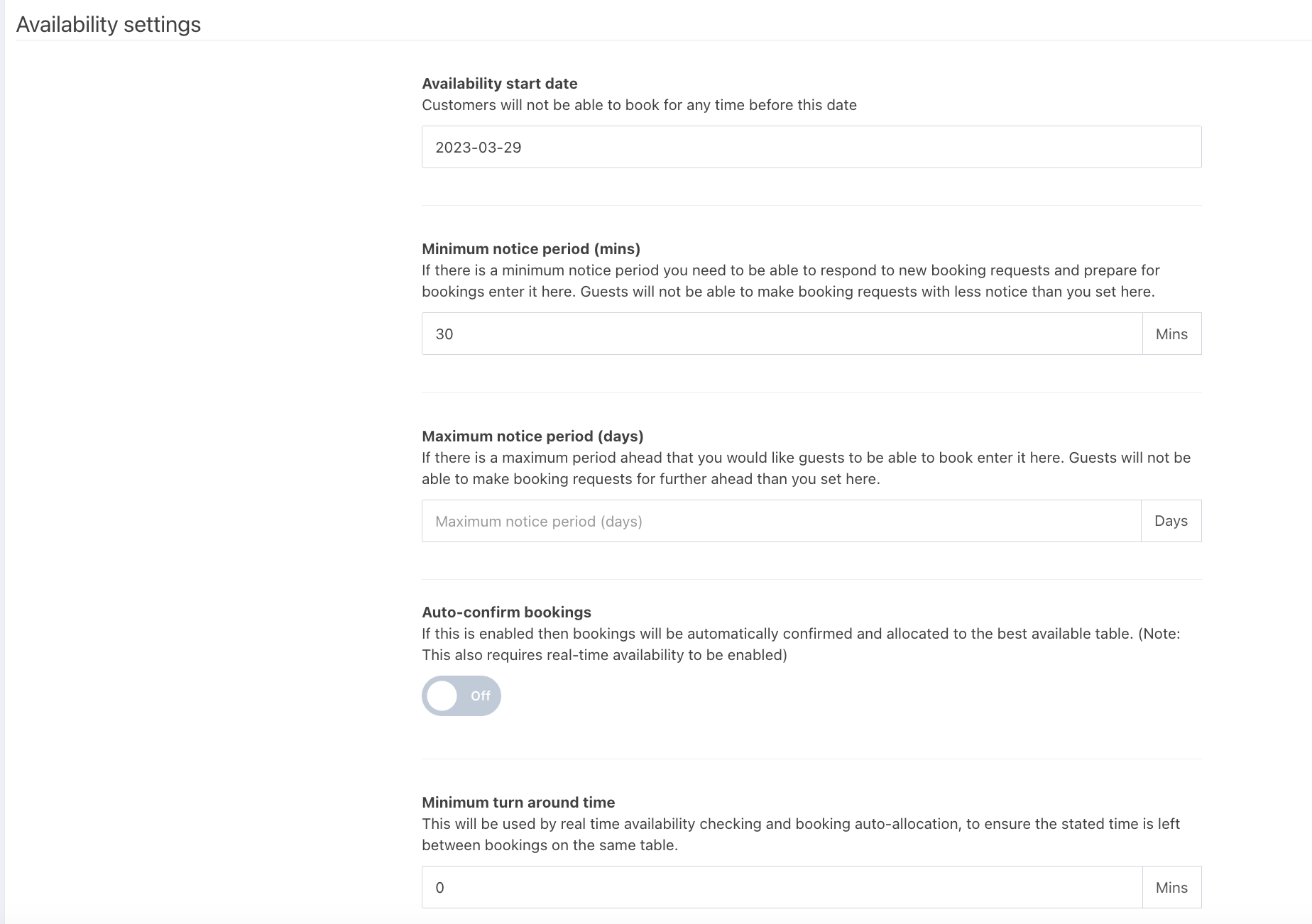
You can then set the following options relating to your booking availability:
- Availability start date - Optionally specify a date at which you are starting to accept bookings
- Minimum notice period (mins): This is the minimum amount of notice for new booking requests. Customers will not be able to make a booking request with less notice than specified here
- Maximum notice period (days): This is the maximum amount of notice a customer can book in advance for. Customers will not be able to book for any further in the future than specified here
- Auto-confirm bookings: Booking requests to be automatically confirmed and allocated to the best available table with no manual approval needed
- Minimum turnaround time: If you need a set amount of time to turn a table over between bookings, you can set a minimum turnaround time
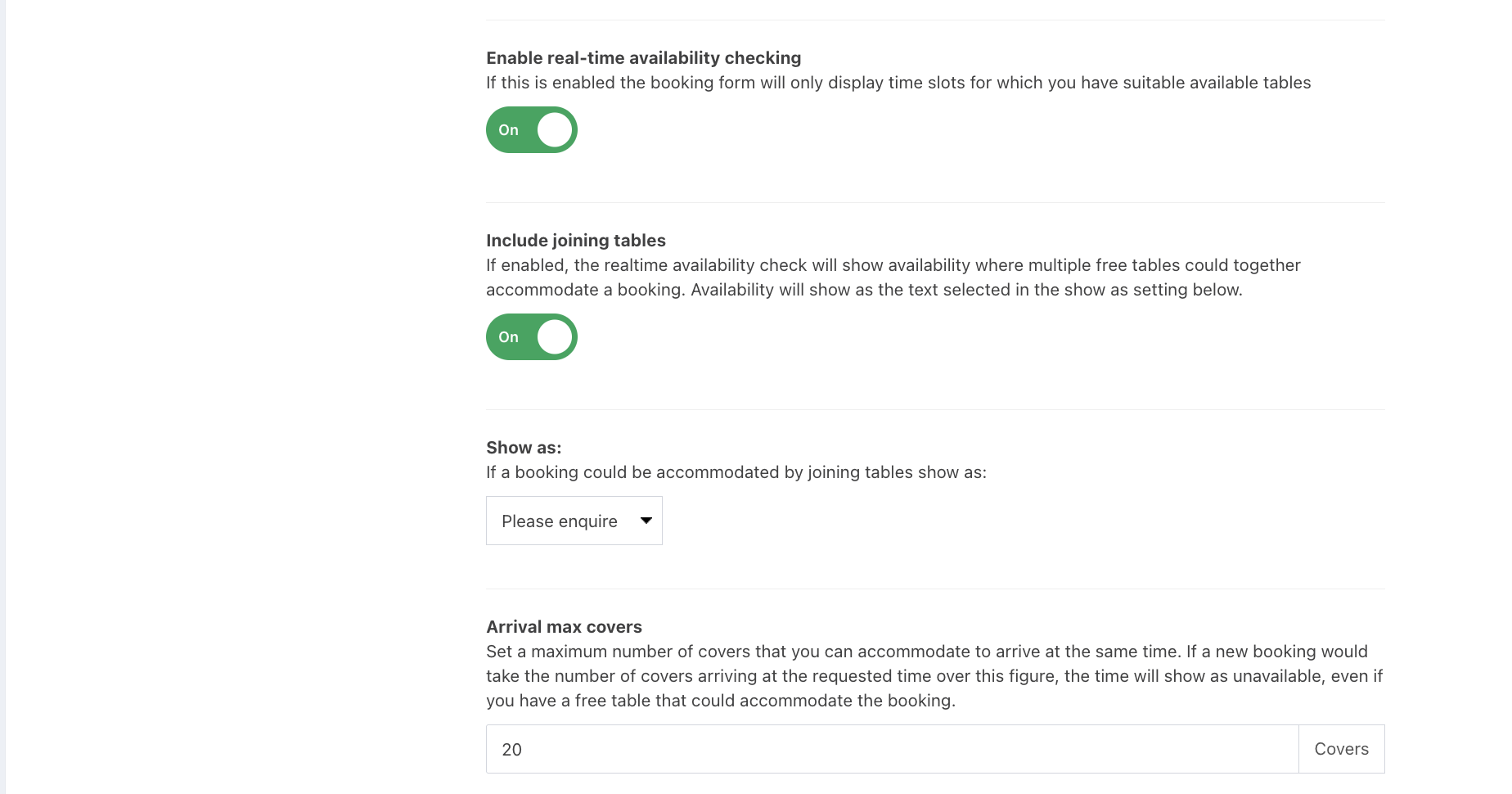
- Enable real-time availability checking - Enable this if you would like to prevent customers from making booking requests if you do not have any availability. See Setting up real time availability
- Include joining tables - Enable this to allow the realtime availability checker to show availability when multiple free tables could be joined to accommodate a booking
- Show as - This is the text that will be shown to your guests, if you turn the include joining tables feature on
- Arrival max covers - The maximum number of covers that you can accommodate to arrive at the same time
Once the widget is live on your website, you will be able to receive booking requests directly in the back office. See Receiving and managing booking requests.
Was this article helpful?
That’s Great!
Thank you for your feedback
Sorry! We couldn't be helpful
Thank you for your feedback
Feedback sent
We appreciate your effort and will try to fix the article