When you have downloaded the Tabology Live app, you will then need to connect your venue(s).
Note: For centrally managed sites, you will need to connect to each venue.
To connect your venue, locate the Tabology Live app on your phone and open the app. Then click the blue Sign in button. Choose your preferred sign in method (Apple or Google), by clicking on the corresponding logo. At the sign in prompt click Continue.
Follow the instructions to sign in.
Note: You can sign in with any Apple or Google account, the email address does not need to match your Tabology back office login email.
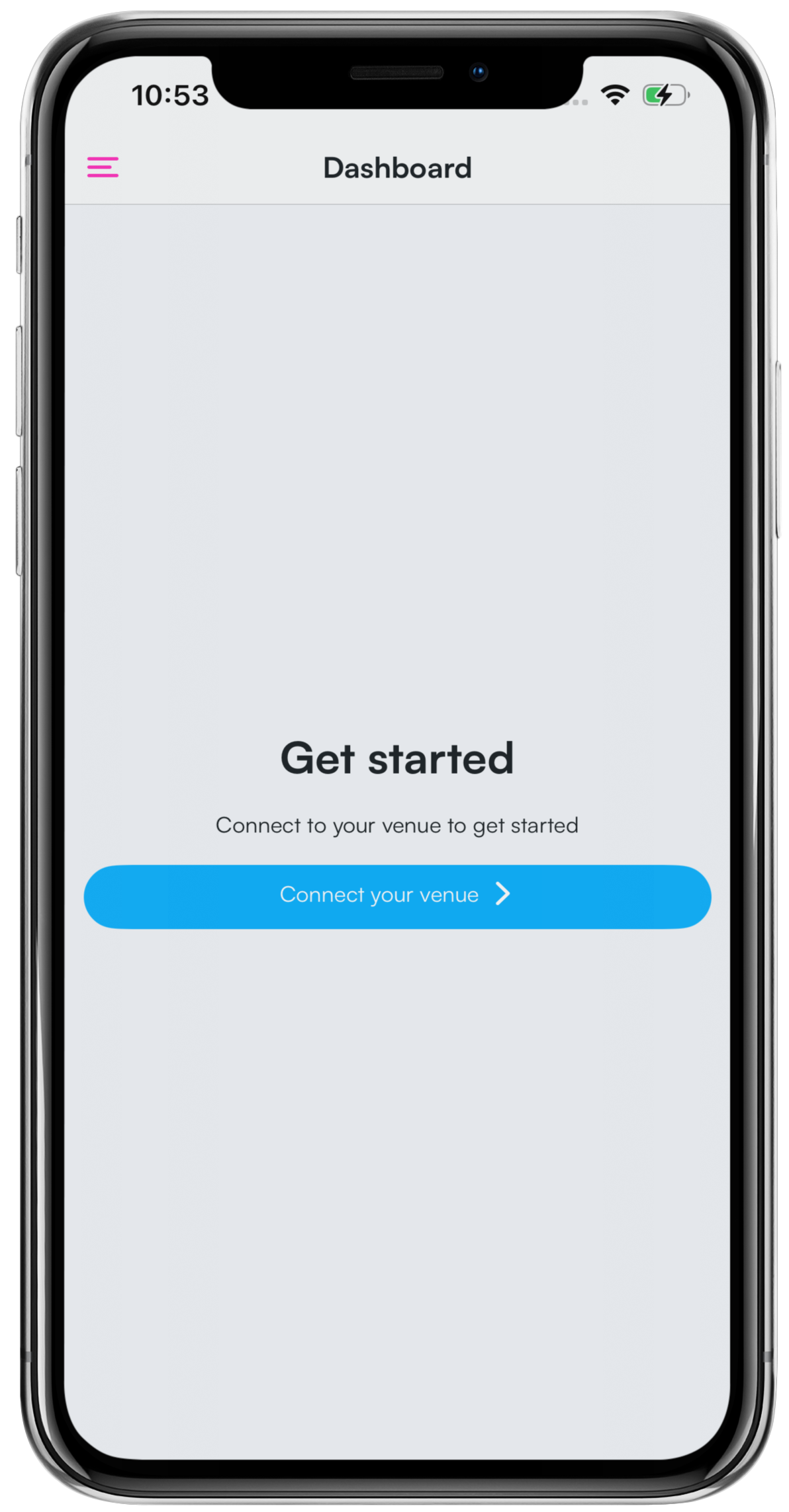
From the Get started screen, click the blue Connect your venue button.
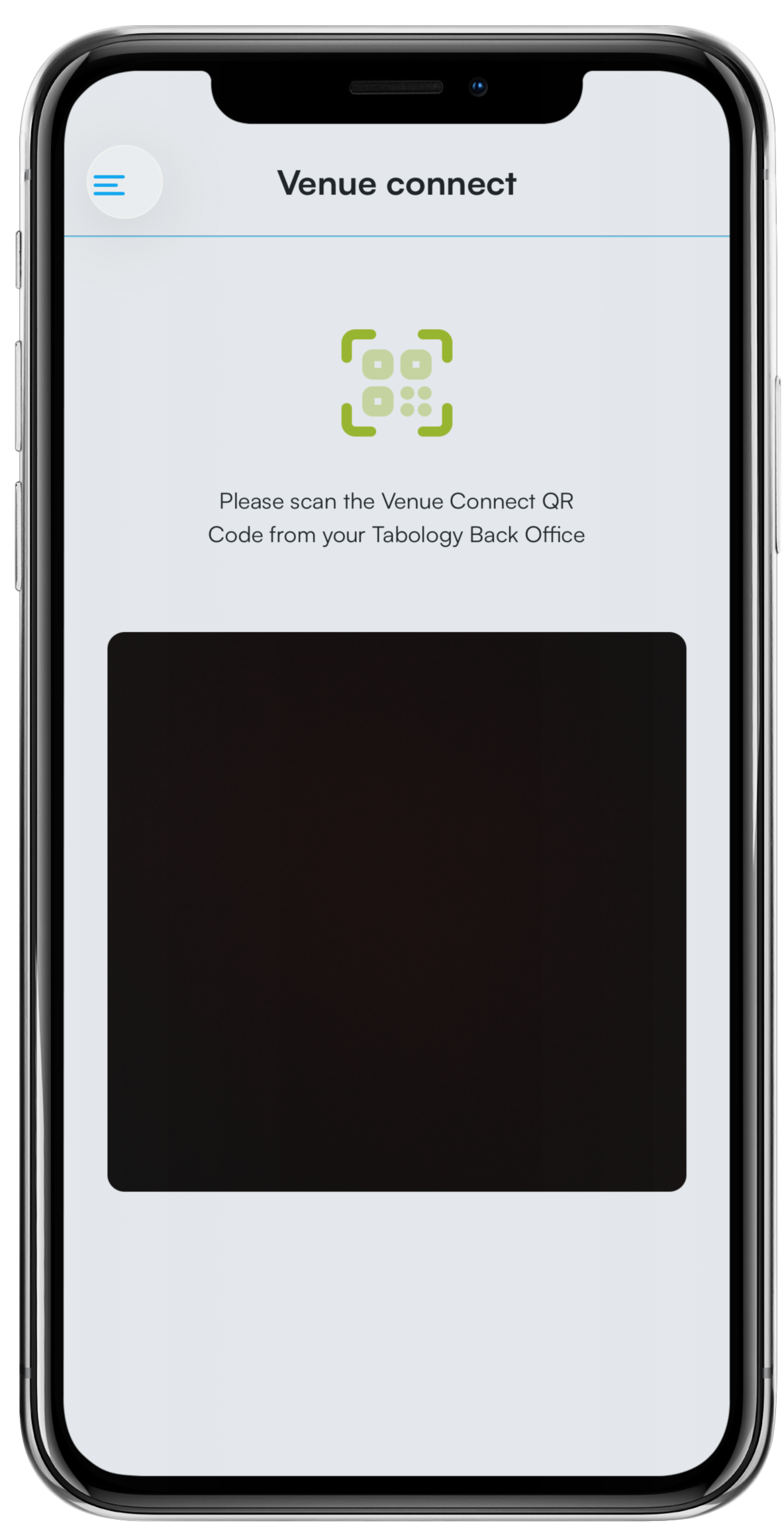
You will be prompted to scan the Venue Connect QR Code.
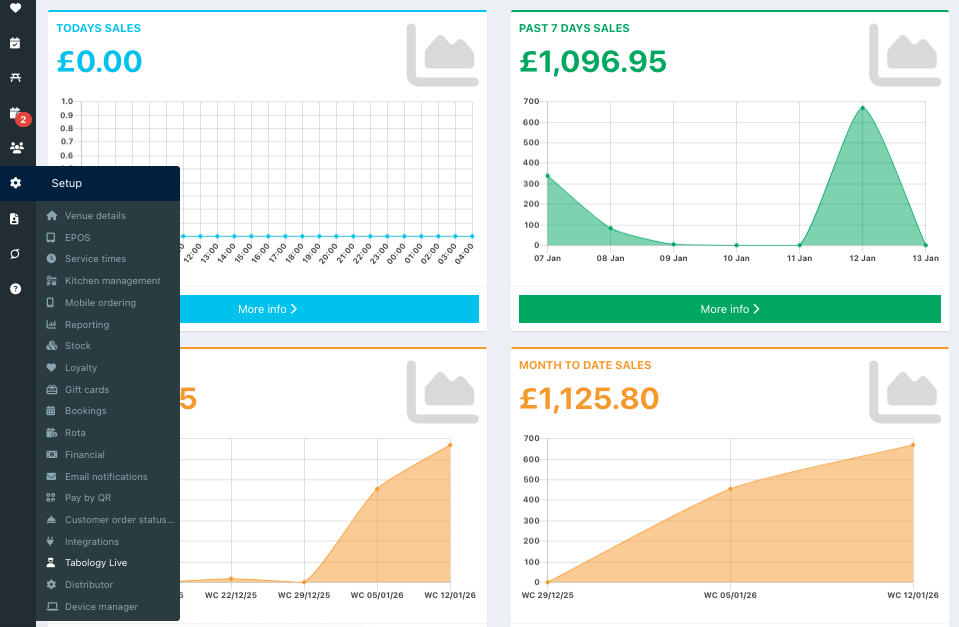
Go into your back office and click Setup > Management app, from the left hand navigation.
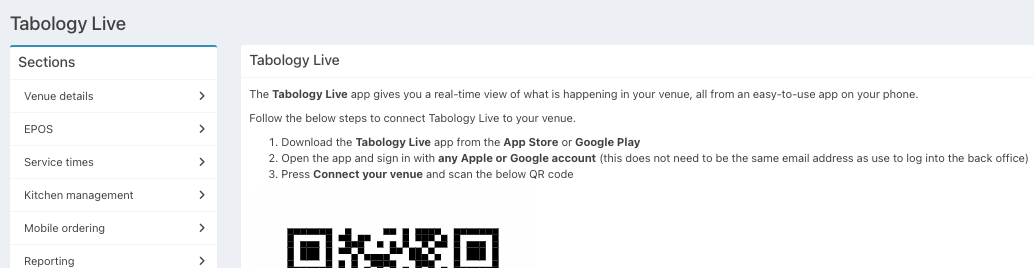
Follow the instructions from the Tabologe Live app setup and scan the Venue Connect QR code displayed.
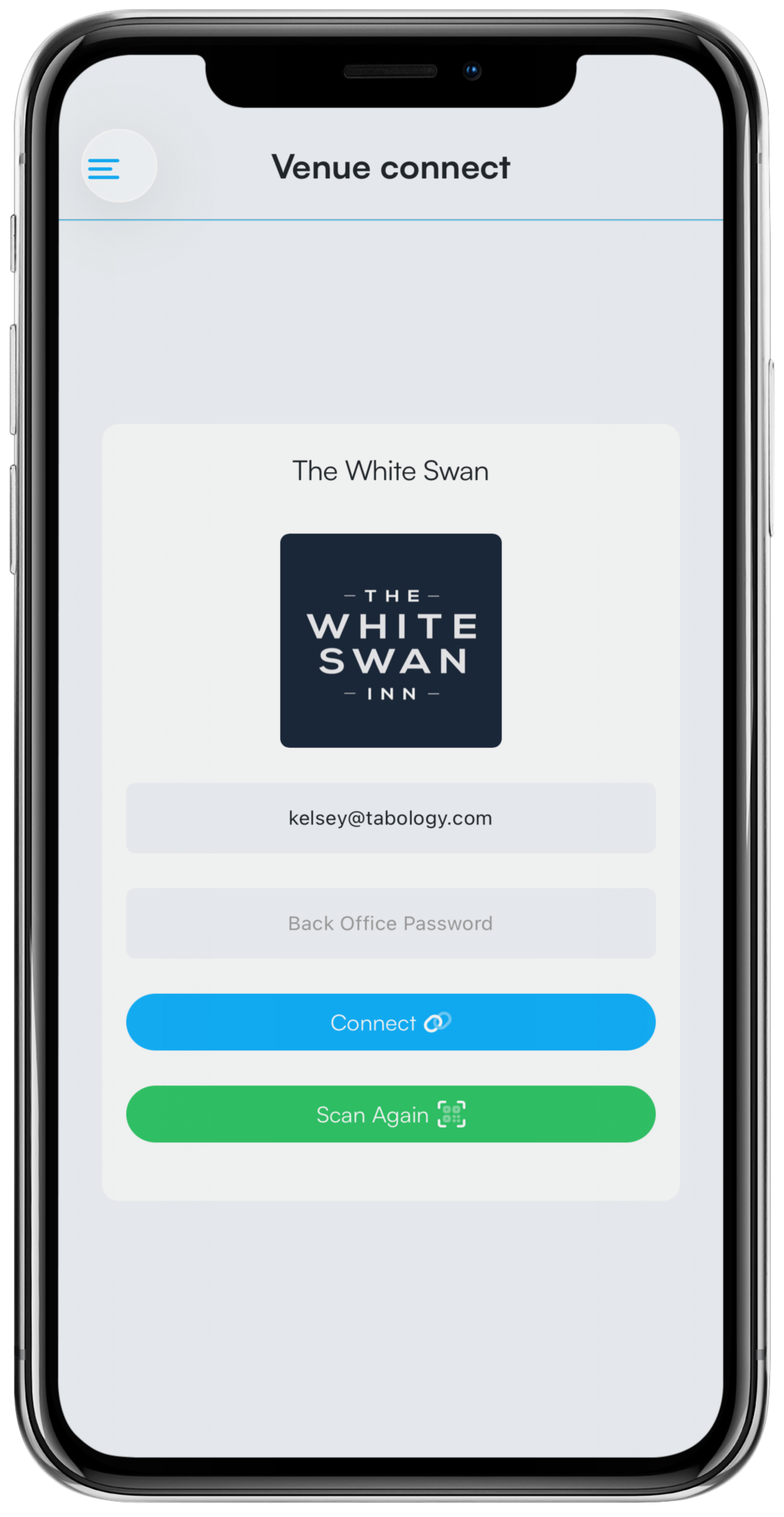
When scanned, your venue will display. Your email will pre-populate from the User logged in to the back office. Enter your password, then click the blue Connect button.
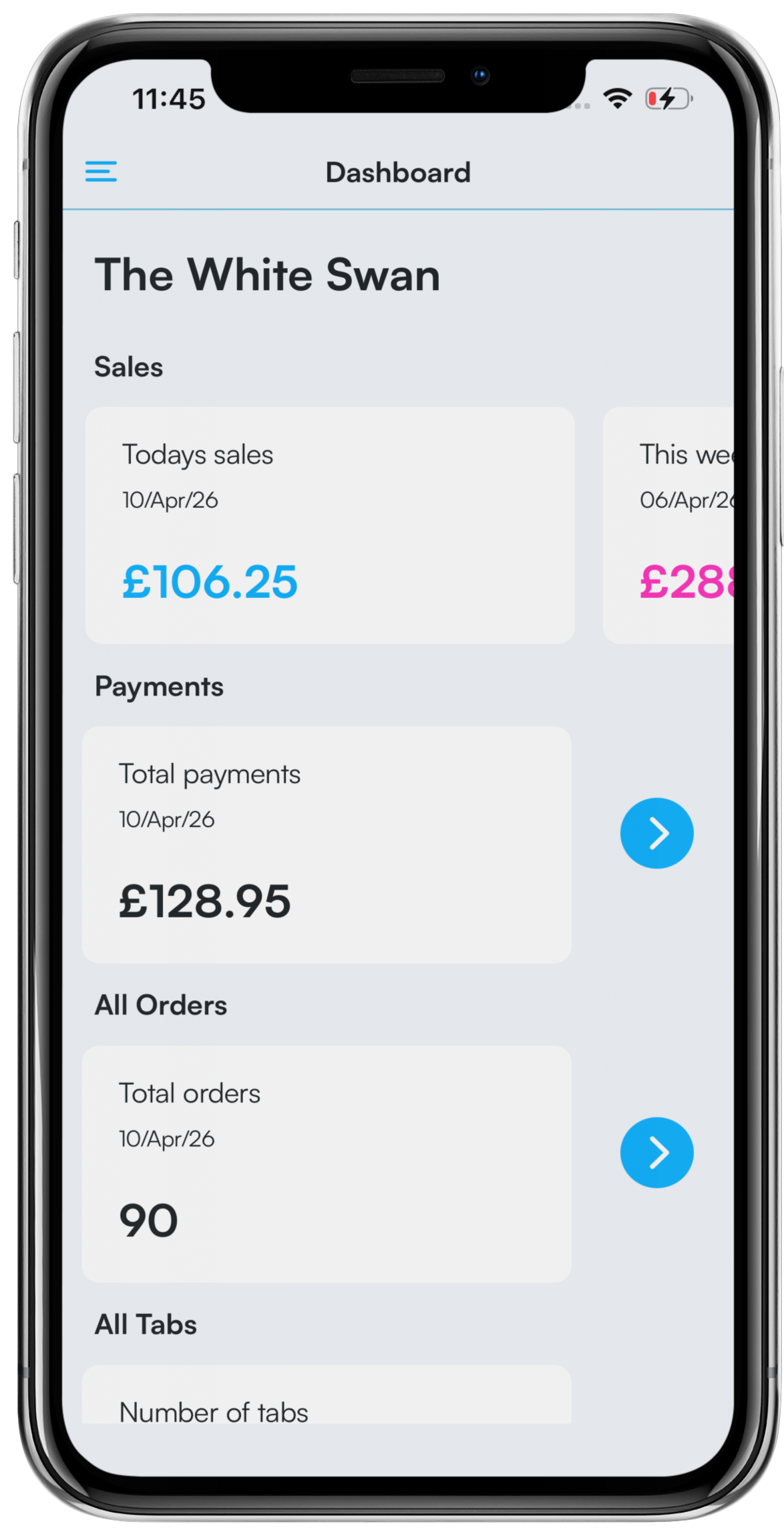
Your dashboard will now display. To see the most up to date sales, drag the screen down to refresh.
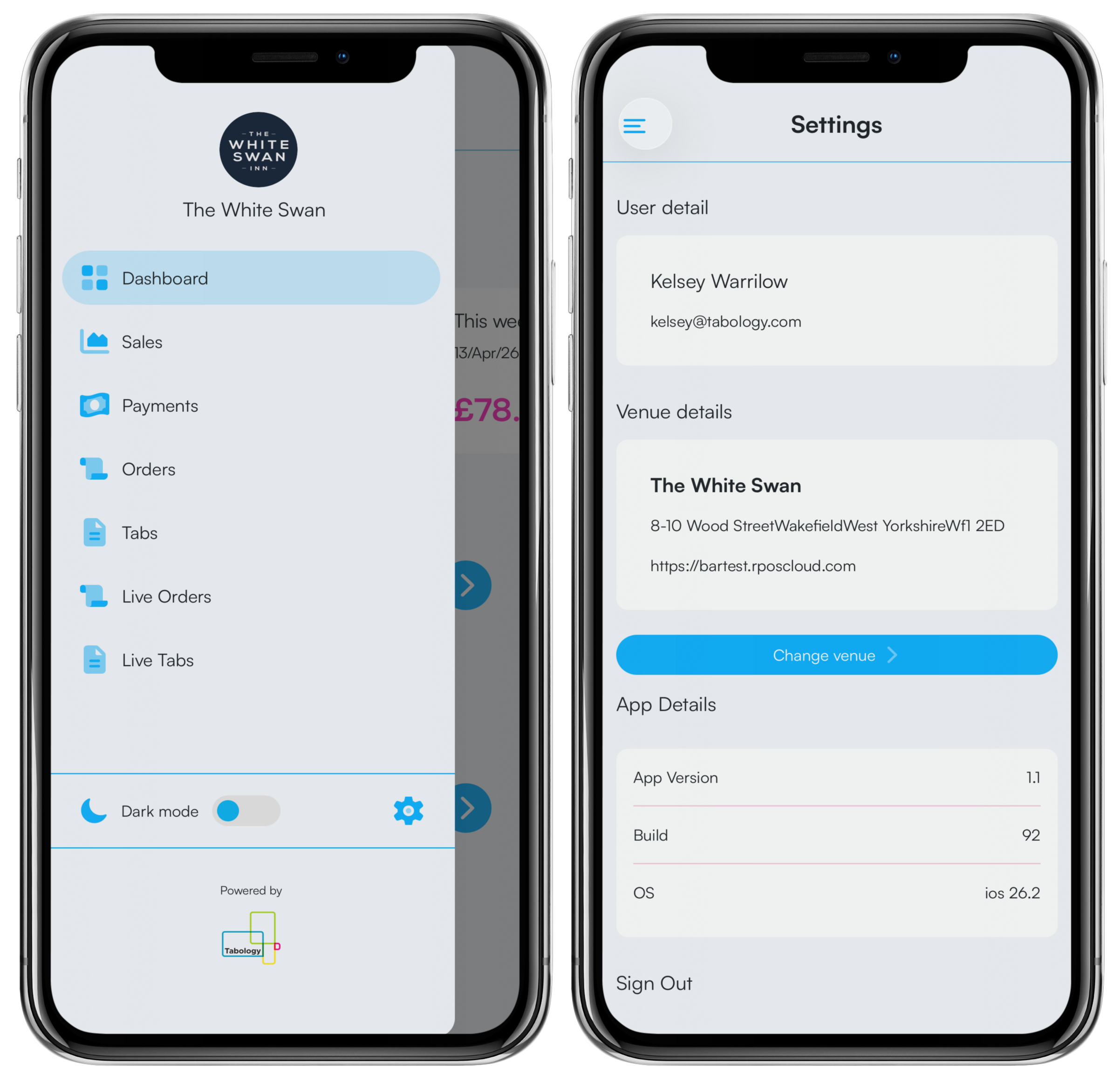
To connect more venues, click the blue Menu icon in the top left of the screen, followed by the Settings cog. Then click the blue Change venue button.
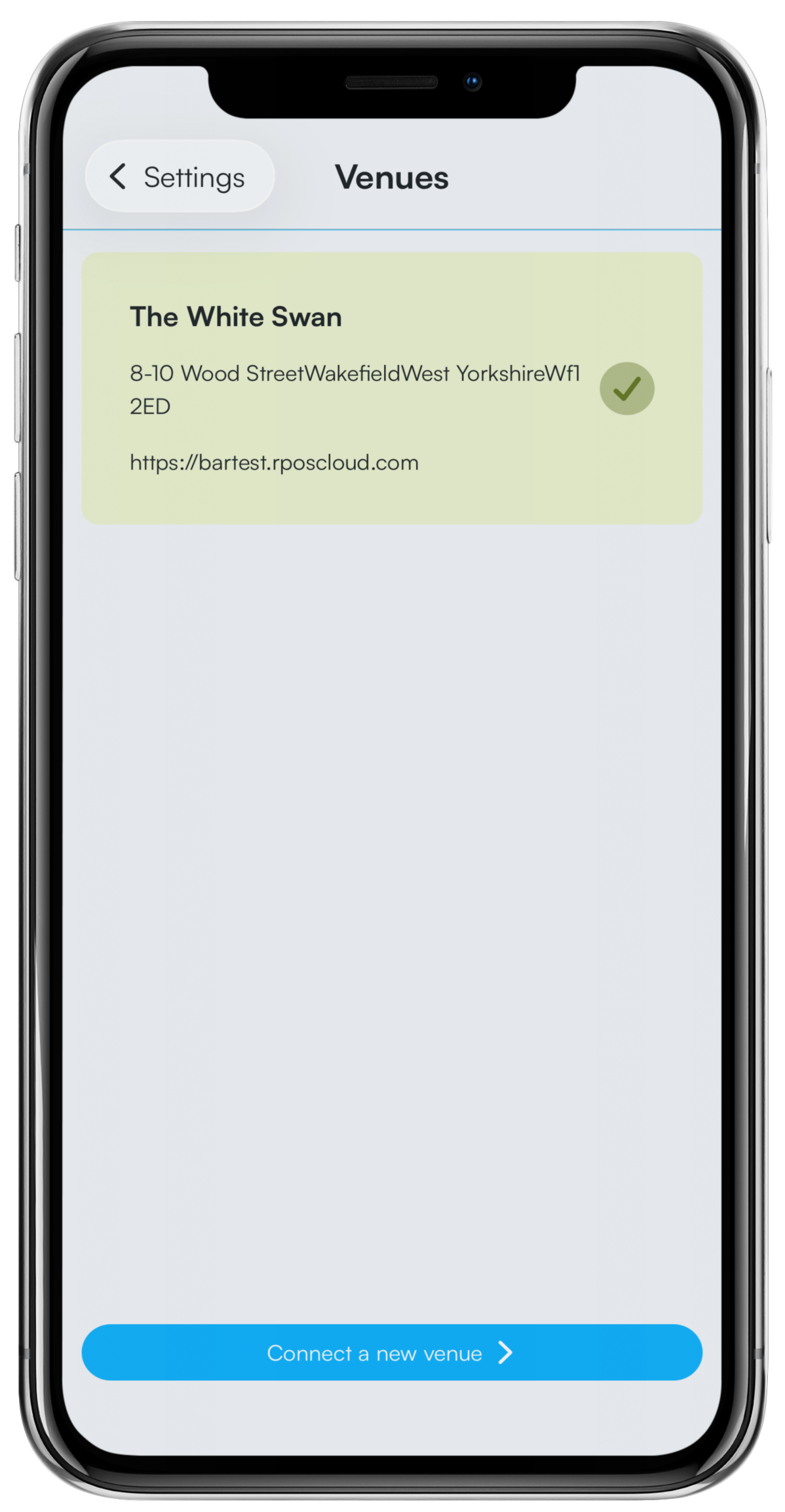
Click the blue Connect a new venue button, at the bottom of the screen to connect additional venues. Then repeat the Venue QR code connect steps above.
Was this article helpful?
That’s Great!
Thank you for your feedback
Sorry! We couldn't be helpful
Thank you for your feedback
Feedback sent
We appreciate your effort and will try to fix the article