You can view and export any recorded tip payouts to show how tips were distributed for any given payout period.
To view your a Tip payout, go into your back office and select Staff rotas > Tip payouts from the left hand navigation.
Any existing Tip payouts will display in a list format in the Report section.
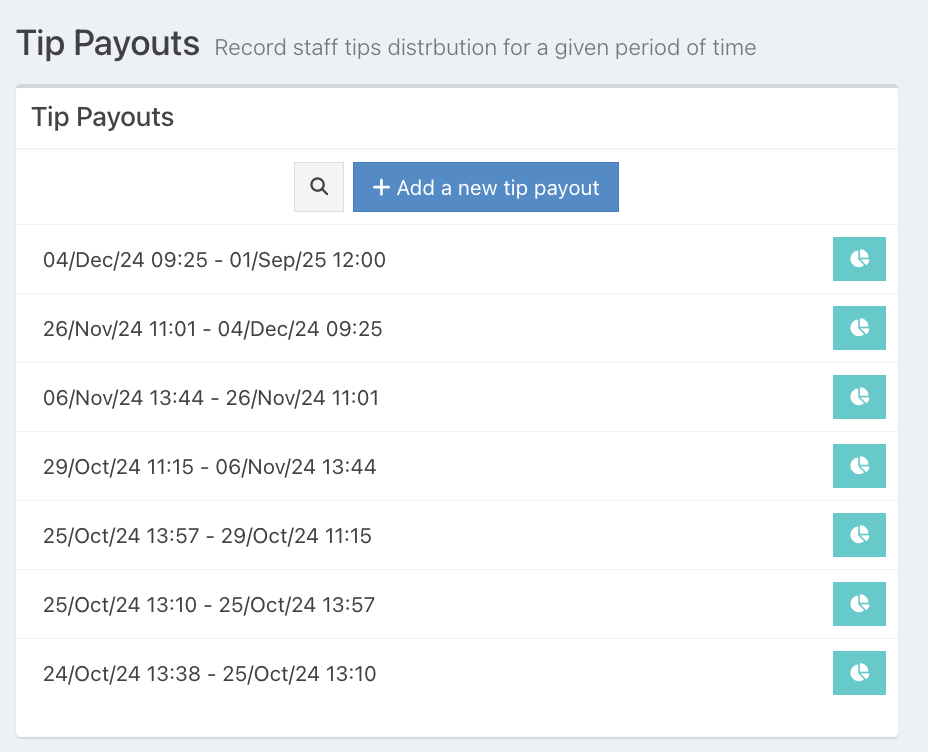
Select the Tip payout that you want to view by clicking the Pie chart icon at the end of the row.
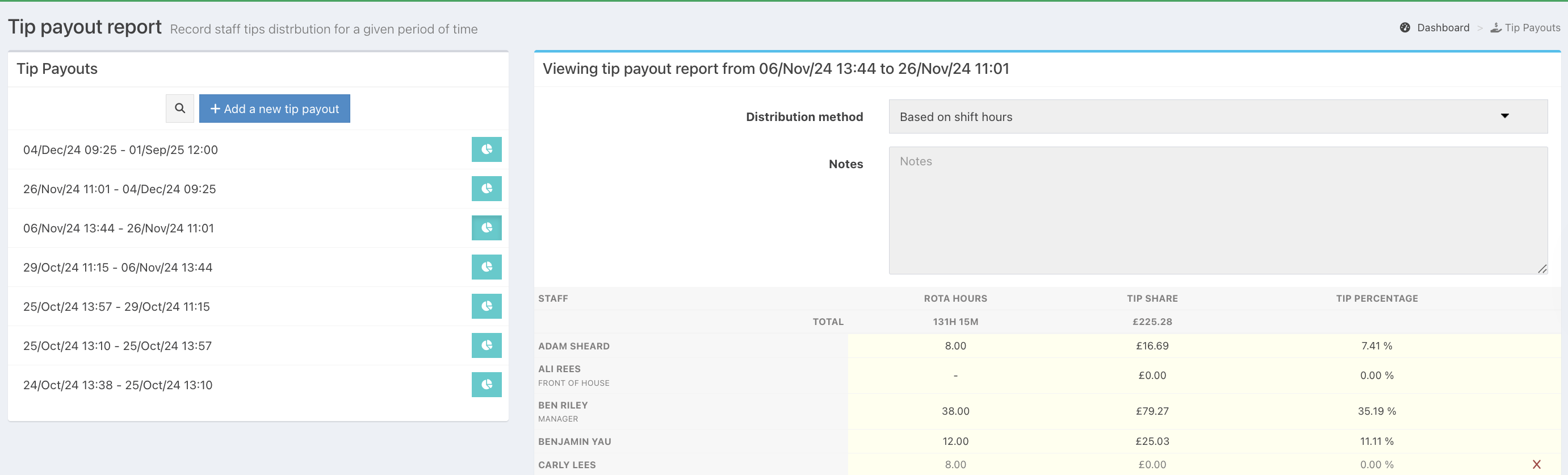
Any staff members excluded from the Tip payout will be indicated with a red X at the end of the row, and the text fields will be greyed out.
Hovering over the red X will also display a note to indicate the staff member exclusion.
You can download or print the tip pay out by clicking on the green Download PDF or Print buttons.
Note: If you need to provide a specific staff member with a record of their tips, you can print one from their profile in the staff module.
Searching
If you have a long list of Tip payouts, you can use the Search function at the top of the list to quickly locate a Tip payout.
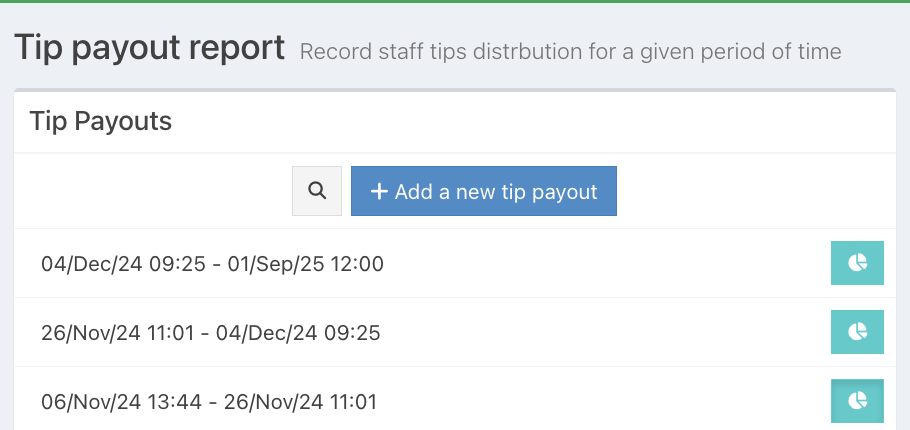
Click the grey magnifying icon, next to the Add a new tip payout button.
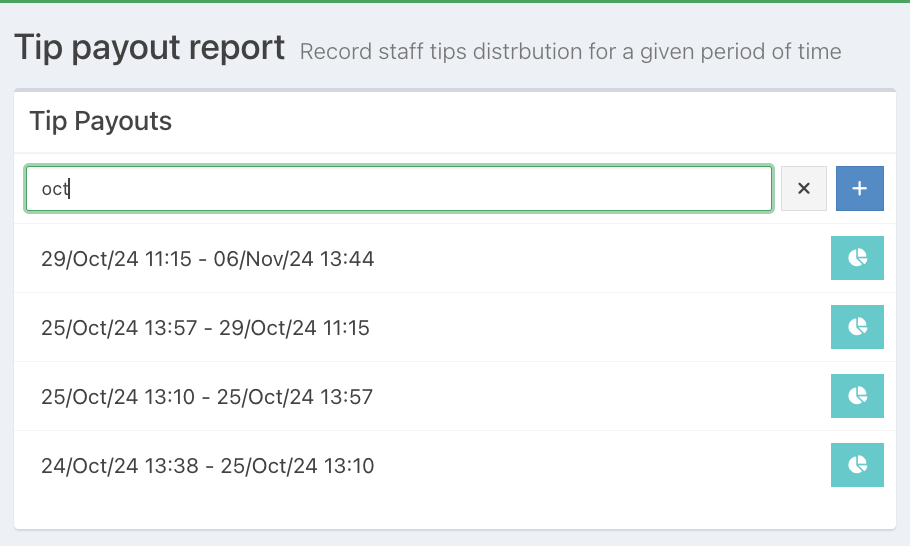
Start typing the date of the Tip payout into the text field, and any corresponding Tip payouts will display.
Was this article helpful?
That’s Great!
Thank you for your feedback
Sorry! We couldn't be helpful
Thank you for your feedback
Feedback sent
We appreciate your effort and will try to fix the article