Pay by QR code gives customers a quick and convenient way to pay their bill as soon as they are ready to leave. You can either display QR codes on your tables, or print them on customer bills.
To see how this works for a customer, see Pay by QR code.
To enable Pay by QR code, go into your back office & select Setup > Pay by QR from the left hand navigation.
Toggle Enable pay by QR to on.
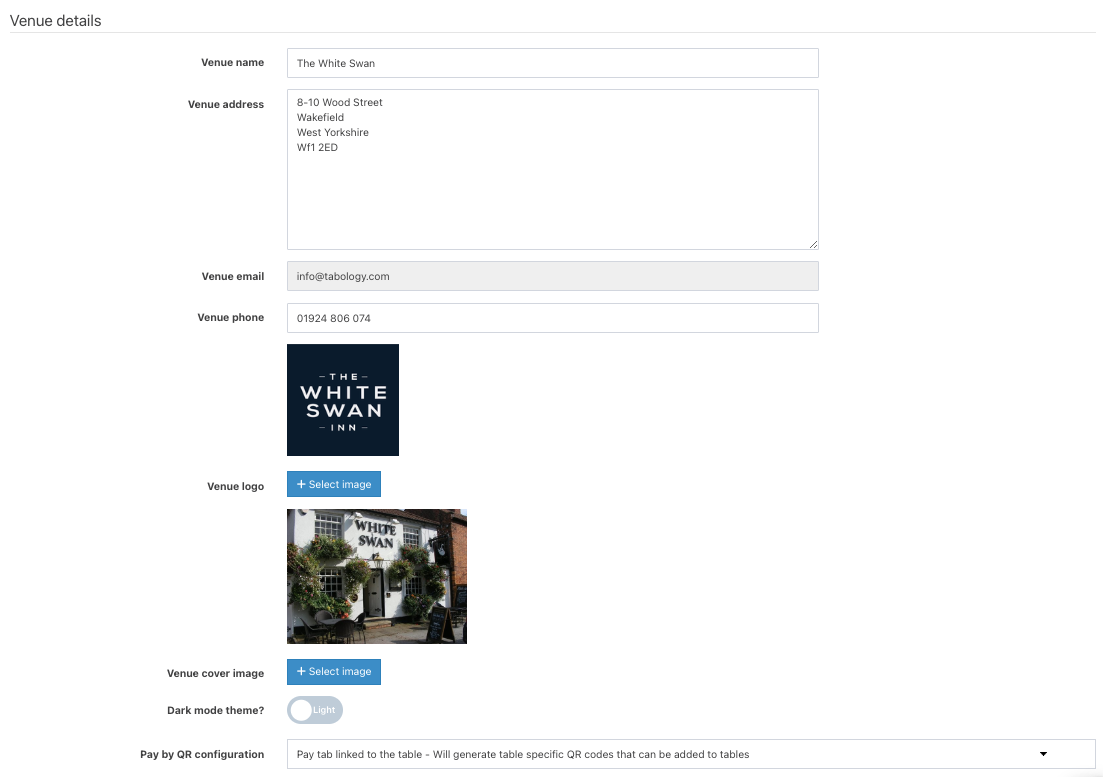
When enabled, the Venue details will display.
In the Venue details section, you can:
- Add your venue address
- Add a venue phone number
- Add your venue logo & cover image
- Select the Pay by QR code configuration
Note: The venue name & venue email address will be pre-populated.
When selecting the Pay by QR code configuration, you will be able to choose from:
- Pay tab - Adds a QR code to customer bills. Customers scan this to pay their bill.
- Pay tab linked to table - Generates table-specific QR codes that can be printed (see Table Management below) and displayed on tables. Customers scan the QR code to pay their tab when they are ready.
From the Table management section, you can:
- Print QR codes for your tables (as set in your back office)
- Manage tables
- View the general QR code URL
- View the table-specific QR code URL
To save your Pay by QR setup, click the blue Save pay by QR setup, in the bottom right corner of the screen.
Was this article helpful?
That’s Great!
Thank you for your feedback
Sorry! We couldn't be helpful
Thank you for your feedback
Feedback sent
We appreciate your effort and will try to fix the article