If you use a kitchen screen, you can view detailed reporting on food service times in the Food Service Times report.
To do this, log in to your back office dashboard and hover over the Reporting icon in the left-hand navigation. Select Service > Food Service Times.
You can then select a date range to view individual and average food service times over the period.
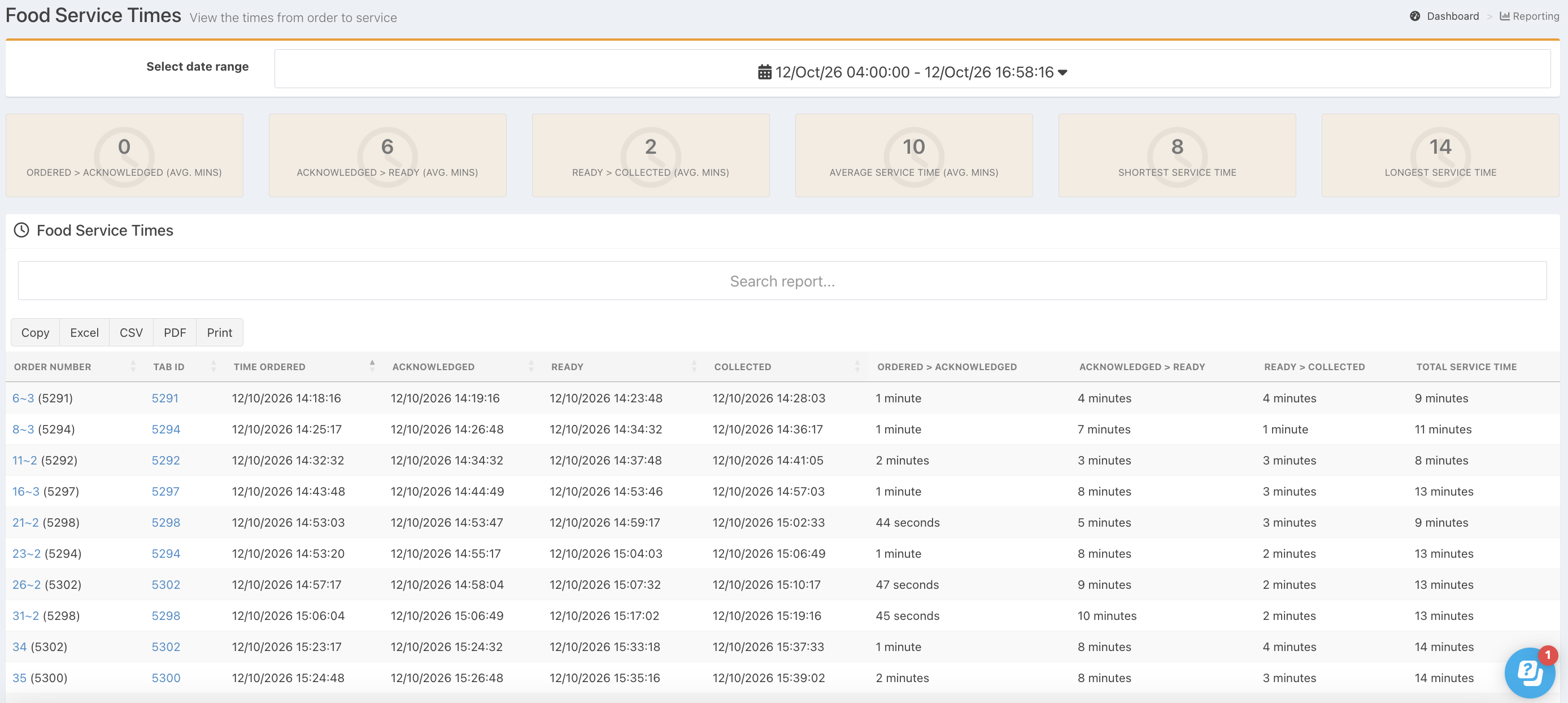
You will be able to see:
- The order number (click the blue order number, to see the details of the order)
- Tab ID (click the blue tab ID, to see the details of the order)
- Time and date for order status'
- Length of time it was taken for each order status to be actioned
Searching
If you have a long list of service times, you can use the Search bar at the top of the report, to search for specific information.

Sorting
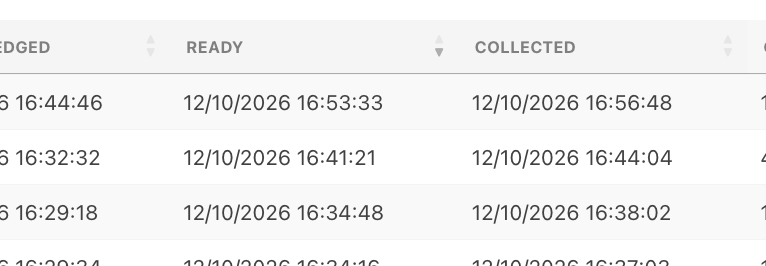
You can also sort the Food service times report by columns. Click the column header to alternate between ascending and descending order.
Note: You can only sort by Order number, Tab ID or Order status.
Exporting
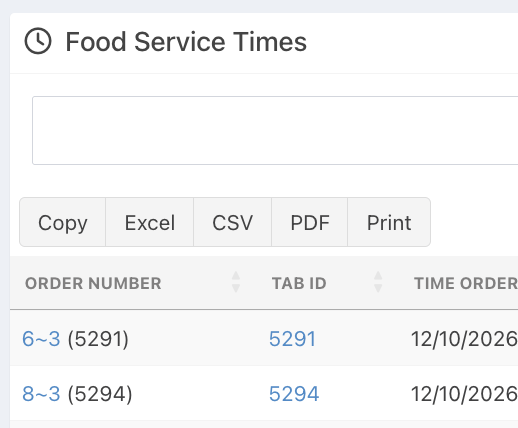
You are also able to copy the report to your clipboard, display in a print or PDF format and export to Excel or CSV.
Was this article helpful?
That’s Great!
Thank you for your feedback
Sorry! We couldn't be helpful
Thank you for your feedback
Feedback sent
We appreciate your effort and will try to fix the article